State Clearinghouse Frequently Asked Questions
Document Submission
How do I file CEQA documents and notices with the SCH?
The SCH no longer accepts hardcopies or emails of filings of CEQA documents as of November 3, 2020. You must register to file on our new online CEQA Database. The SCH will return emails and hard copies and inform the submitter that they must file online.
What are the accessibility requirements for CEQA document submissions?
The SCH requires all documents to have Optical Character Recognition (OCR) for publication.
Additionally, State and federal agencies must comply with all applicable statutory and regulatory requirements related to the Americans with Disabilities Act for documents posted and made available on internet websites. Local agencies must comply with all applicable statutory and regulatory requirements related to the Americans with Disabilities Act for documents posted and made available on internet websites. Check with your agency’s legal counsel to see the specific requirements.
The Governor’s Office of Land Use and Climate Innovation (LCI) accepts no responsibility for the content or accessibility of documents being uploaded to the CEQA database. For more information, please visit LCI’s Accessibility page.
What can I file with my Notice of Determination (NOD)?
The NOD form and Addendum or Final of the certified/approved draft environmental document. State agencies have the option to include a NOD form, but local agencies must include a NOD form at minimum.
How do I pay California Department of Fish and Wildlife (CDFW) CEQA fees?
Filing Notices of Determination (NODs) Online and Paying Fees
You can file Notices through the State Clearinghouse online portal. The State Clearinghouse will not post Notice of Determination (NODs) until required fees are paid.
So that the State Clearinghouse can post your Notice of Determination in a timely manner, please double check that you have signed the Notice of Determination documents and follow the important instructions below about how to pay the required fee, which you must pay by check.
Submit a Check within One Week of Filing a Notice of Determination
LCI strongly encourages that within one week of filing a Notice of Determination, you deliver a check in person or put one in the mail. If LCI receives the check before you have filed a Notice of Determination online, LCI will hold the check for a maximum of 14 days before returning the check if you have still not filed the Notice of Determination.
When a project applicant will be paying California Department of Fish and Wildlife fees, the State lead agency and project applicant must coordinate to ensure they send the Notice of Determination and check within a week of each other.
Amount and Payee
Refer to the CDFW website for the most up-to-date filing fee requirements and ensure you are paying the correct amount.
Make checks payable to the California Department of Fish and Wildlife.
Required Information to Include with the Check
To avoid misdirection of checks and delays in posting Notices of Determination, clearly identify the purpose of the check on the check itself or on an enclosed transmittal note.
If the check and/or enclosed transmittal note does not include the information below, the materials including the check will be returned immediately. The check and/or enclosed transmittal note must include:
- State Clearinghouse Number (SCH#)
- Project title
- Project contact person’s name and number and/or email address
How to Submit the Check
You can mail the check or make an appointment to deliver it in person to the State Clearinghouse at the address below. The State Clearinghouse accepts in-person drop-offs of California Department of Fish and Wildlife filing fees by appointment only. To make an appointment to deliver the check in person, email state.clearinghouse@lci.ca.gov or call the State Clearinghouse at (916) 445-0613 between the hours of 9 a.m. and 4 p.m. (Monday – Friday, excluding holidays).
State Clearinghouse
1400 Tenth Street
Sacramento, CA 95814
Note: P.O. Box 3044 is no longer valid.
I need to file a CEQA document on my cannabis project
The SCH is not authorized to determine/approve your CEQA document. CEQA review is typically done at the local level first, as part of a city or county’s local review process for a discretionary permit related to cannabis cultivation, manufacturing, or other commercial activity. Evidence of this local CEQA compliance is then submitted to the relevant state licensing authority as part of the license application. For additional information on the regulations of the relevant state licensing authority about the CEQA review process can be found at the Department of Cannabis Control’s website.
Where can I submit my Annual Progress Report (APR)?
We are no longer accepting mailed in applications.
The General Plan APR submitted to LCI should outline the status of the General Plan and progress in its implementation over the previous year’s 12-month reporting period. It can be submitted to LCI electronically via email to opr.apr@opr.ca.gov. For more information on submitting both annual progress reports, please refer to LCI’s Annual Progress Report Guidance Memo.
All jurisdictions are required to provide LCI and the Department of Housing and Community Development (HCD) with separate General Plan and Housing Element Annual Progress Reports (APRs) by April 1 each year, per Government Code Sections 65400 and 65700.
What are LCI's hours of operation?
The State Clearinghouse operates Monday through Friday, 9:00 a.m.–4:00 p.m., and closes on all State Holidays.
- Please check if the document or notice you are considering submitting is already on the State Clearinghouse website and if it is, do not submit it
- Please provide a draft of the new content including at title.
- For same-day processing of Draft/Final CEQA documents and other environmental documents, you must submit them by 3:30 p.m. on a business day. Otherwise, the State Clearinghouse team will process the documents on the next business day.
- For same-day processing of Notices of Exemption (NOE) and Notices of Determination (NOD), you must submit them by 4 p.m. on a business day. Otherwise, the State Clearinghouse team will process your Notice on the next business day.
CEQA Submit
How do I register into CEQA Submit?
If you can log into CEQA Submit successfully with your work email, then you are already registered. If you need to register, go to CEQA Submit and select “Create an account.”
What role can I select on CEQA Submit?
If you are the Lead Agency (government entity), you can choose the Admin OR Submitter role (one or the other). The State Clearinghouse must approve this role for you.
If you are the consulting firm, you can only choose the Submitter role (for each Lead Agency). The Lead Agency Admin must approve this role for you.
If you are the Responsible Agency (government entity), you can only choose the Submitter role (for each Lead Agency). Either the State Clearinghouse or the Lead Agency Admin can approve this role for you.
What can Admins and Submitters Do on CEQA Submit?
- Admin Capabilities:
- Approve a consultant from a consulting firm’s or staff from within the Lead Agency’s “Submitter” role requests to submit CEQA documents on behalf of the Lead Agency. (Note that all consultants and staff members must be registered users.)
Submit a CEQA document on behalf of their agency
- Submitter Capabilities:
- Submit a CEQA document on behalf of a Lead Agency or as a Responsible Agency
Why was my role request rejected on CEQA Submit?
This usually happens if a Consultant requests the “Admin” role for the lead agency. Only individuals who work directly for the lead agency can request the “Admin” role; consultants may only request the “Submitter” role. Roles are also revoked if an individual requests access to a Lead Agency that they are not representing.
What does a pending role mean?
A pending role on CEQA Submit means you have requested a role to submit on behalf of an agency but have not yet been approved. Lead Agency Admins must approve Consultant Submitter requests, and the SCH approves lead and reviewing agency staff members. Users can submit documents with a pending role, but the project will not publish/start review until the role request is approved by either LCI or the lead agency.
How do I know my role is approved?
The “Pending” label next to your name will no longer be visible once your role is approved.
Why did I not receive an emailed User Key from CEQA Submit?
If you are having issues receiving the login key, check whether the email is going to your spam folder or ask your IT department if it is being blocked by your network’s firewall. If you still cannot receive a key, contact the SCH and we will be able to provide one for you upon request.
Why did my submission get recalled on CEQA Submit?
SCH staff must recall document submissions when they do not meet certain document submission requirements. Common issues encountered include:
- The user submitted their document under a new SCH number when it should have been filed under an existing SCH number
- The “Document Description” field in “Document Details” tab does not have an informative project description
- Uploads in the “Attachments” tab do not have Optical Character Recognition (OCR)
- The user did not attach the minimum document requirements
- The user created separate submissions for each attachment when all attachments should be in one submission
- The user did not indicate a review period, or the review period did not meet CEQA standards
- A local agency did not include an attachment of a NOD or NOE form in their submission
- The lead or responsible agency is listed incorrectly
Will the lead agency receive a notification when a consultant requests access to CEQA Submit?
The SCH does not yet have the capability notify the lead agency that a consultant has requested to submit on behalf of an agency. The lead agency and consulting firm should be in regular contact to facilitate the approval process. Contact the SCH for assistance.
Why is my agency not listed in the CEQA Database?
This means that the agency has not yet submitted a CEQA document to the SCH. To request the agency to be added, please email the SCH with the full name of your agency and its official website. Please make these requests before 1:00 p.m.
Note: If the Lead Agency does not have a website, the SCH will accept other forms of verification of the agency (such as meeting minutes and staff contacts).
How do I know the status of my project?
The SCH will email the submitter when a submission needs correction and when a submission is published.
Additionally, registered CEQA Submit users can see the status of their document under the “My Documents” tab.
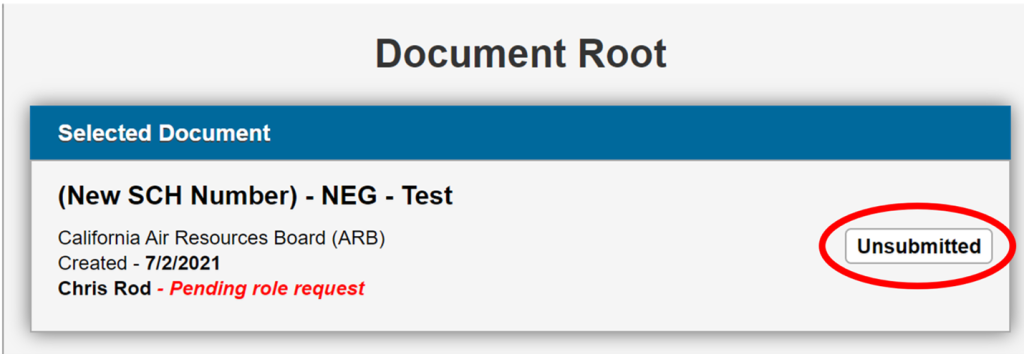
An “Unsubmitted” label means the user has not submitted their document to the SCH. The submitter has sole access to view the submission at this stage; LCI cannot see unsubmitted submissions.
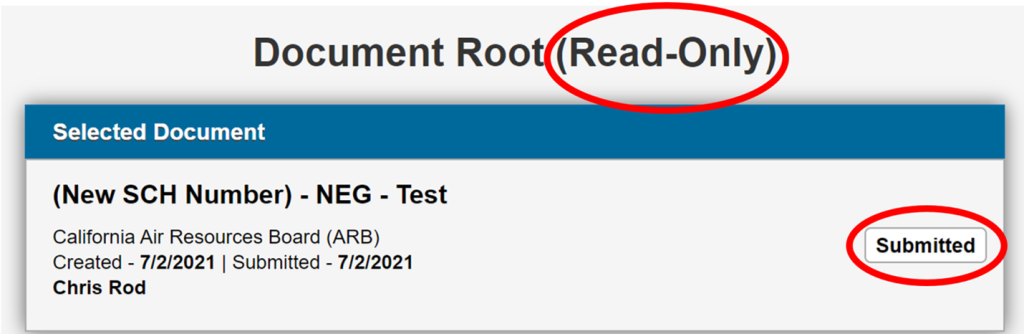
A “Submitted” label means the user has successfully submitted the document to LCI, but a SCH staff member has not yet opened the submission. Your submission is in Read Only mode and you cannot make any changes. Note: you can make changes by “recalling” your submission, under the “actions” tab.
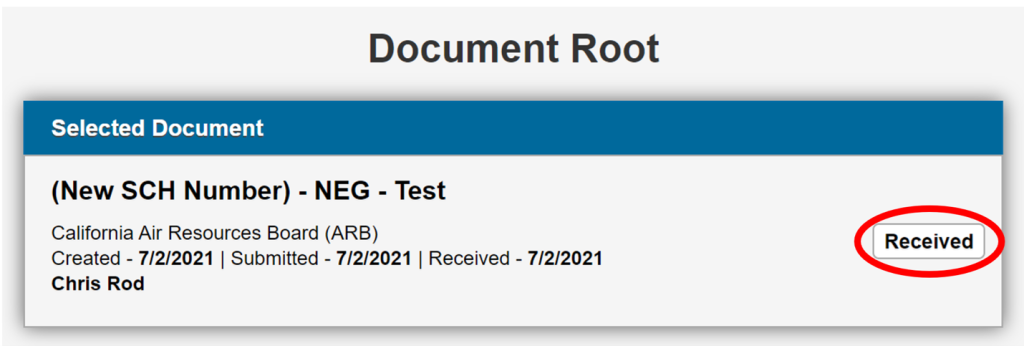
A “Received” label means that a SCH staff member has opened your submission and is reviewing it. If your submission needs corrections, SCH staff will email you with the required corrections and ask you to resubmit when complete. If your submission meets all requirements, SCH staff will choose the appropriate reviewing state agencies and publish your project, sending you a confirmation email upon publication.
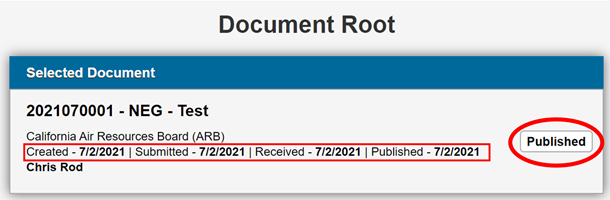
A “Published” label means SCH staff have published your submission to CEQAnet. The “Created”, “Submitted”, and “Published” dates are not posted on CEQAnet; the “Received” date is the date that will appear on CEQAnet.
How do I approve a consultant on CEQA Submit?
Note that only lead agencies can approve consultant requests.
A representative from the lead agency (Not a consulting firm) must be a registered user (RU) and request an “Admin” role for their agency. Admins are usually approved within an hour of their request. Once the SCH approves your request, you can then approve any submitter on behalf of your agency.
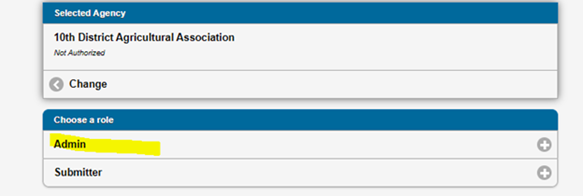
Upon approval, you will see the Admin features on the home page of the website.
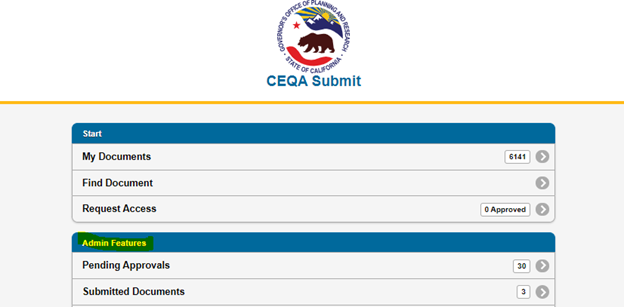
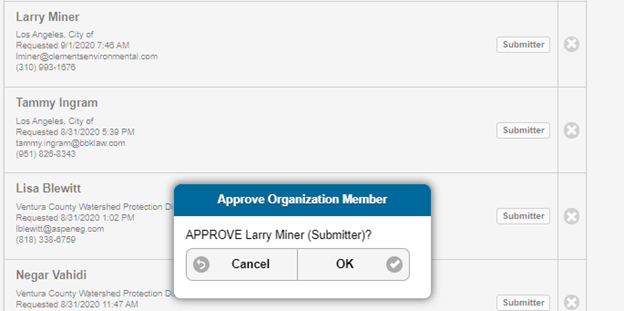
Click on the pending approvals tab. Anyone that is requesting a role for your agency will appear here. You will then click on the names and approve their roles.
A staff member within my agency who is a Registered User (RU) is no longer with our agency. How do I remove them on CEQA Submit?
The SCH can de-activate the RU upon request. Email state.clearinghouse@lci.ca.gov or call us at (916) 445-0613.
How can I share my published document via CEQA Submit?
- Log into CEQA Submit
- Select “My Documents” Tab
- Select the “published” document you want to share
- In the “document root” screen
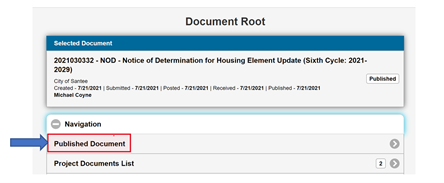
- Select “navigation”
- Select “Published Document”
- This option will take you to CEQAnet; share that URL with anyone.
What does the “Navigation” tab do?
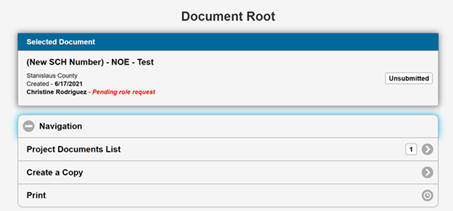
Project Documents List allows for document view to previously published documents submitted under that existing SCH number and project
Create a Copy gives you the capability to copy data you would like to apply to your new document submission, from a previously published document.
Print option allows you to print the “Document Root” page
Note: when a submission is “published” by LCI, you will have the choice to select and view your submission via CEQAnet, when the “Published Document” becomes an option.
How should I name my attachments on CEQA Submit?
Users should use descriptive names for the attachments (i.e. “NOC_Town Hall Project;” “Summary Form_Town Hall Project).
Why must I copy the same information from my forms into the CEQA Submit fields (redundancy)?
This information helps the SCH staff review and select the appropriate State reviewing agencies. Additionally, providing as much information on the form and in the fields of the Document Root helps the agencies and the public know more about the project.
Is there training available on the current and new features of the CEQA Submit database?
Yes, upon request. The LCI staff is available to book trainings through Teams. If you need alternative applications to conduct a training, please inform a staff member.
Published Documents
How do I make changes to a published project?
Once the SCH publishes a project, the submitter can no longer make changes to that project. To make changes to a published project, email the requested changes to state.clearinghouse@lci.ca.gov and include the SCH number of the project in question. Lead agencies should provide a memo on official letterhead explaining the changes to the submission for posting.
For extended review requests, lead agencies should provide an updated Notice of Intent (NOI) or Notice of Availability (NOA) for posting. Note that the SCH cannot remove attachments once they have been published.
How do I find the project I am looking for on CEQAnet?
The large search bar will filter for keywords through our entire database. The Advanced Search function will allow you to enter in a specific SCH number, or filter by year, lead agency, location, and more. If you are having trouble locating your document, you can call the SCH at (916) 445-0613 or email us at state.clearinghouse@lci.ca.gov.
Will I receive a closing letter after the posting period of my Notice of Exemption (NOE) or Determination (NOD)?
No. These notices are posted for a statute of limitation of either 35 (NOE) or 30 (NOD) days. To appeal a notice, you must contact the approving Lead/Public agency.
Will I receive a closing letter on my project after the review period has closed?
The SCH no longer provides close of review period acknowledgement on CEQA environmental document. We are working on a detailed notification process where you will receive an email of the status of your project. In the meantime, you can access comments submitted by state agencies at the close of review period (and after) on CEQAnet.
How do I know my project received comments?
The SCH posts comments from State agencies on CEQAnet daily. Check your project’s CEQAnet profile frequently to see if it has received new comments.
How do I submit comments as a State reviewing agency?
Please email your comment letter to the State Clearinghouse at state.clearinghouse@lci.ca.gov with the SCH number of the project in the email.
How do I submit comments as a non-agency or non-State agency?
Defer to the lead agency on their preferred way of receiving comments. The SCH will only make State agency comments available on CEQAnet. However, you are welcome to email a copy of your comments to the SCH. (Reference CEQA Guidelines Section 15207).
Can I get my CEQA document date stamped?
The SCH no longer applies a SCH date stamp to Notices submitted online, as the CEQA Database already tracks received and published dates. To verify the date your document was received and posted, refer to the “Received” date on your project’s CEQAnet page or the Document Root on CEQA Submit. Registered Users may log into CEQA Submit to check the status of their submissions under the “My Documents” tab.
Can I request a hard copy of a CEQA document?
If the SCH processed a CEQA document prior to March 2019, the SCH no longer has a hard copy. However, our online CEQA Database will have a summarized version of the document, which was transcribed from the notice filed with our office. Refer to the Lead agency contact of the project for more information on the project. As an alternative, you may contact the State Library at (916) 654-0261.
CEQA
Who enforces CEQA?
CEQA is a self-executing statute. Please refer to the California Natural Resource Agency website for more information.
Can LCI provide legal advice?
LCI cannot provide legal advice. If you are in need of legal advice, consider contacting an attorney who specializes in land use and environmental law.
I need a CEQA interpretation pertaining to a CEQA project
Please email the SCH at state.clearinghouse@lci.ca.gov or refer to the California Natural Resource Agency website.
How do I file a complaint on a CEQA document/project?
The Governor’s Office of Land Use and Climate Innovation (LCI) does not have regulatory authority and does not enforce the California Environmental Quality Act (CEQA). The State Clearinghouse (SCH) collects CEQA documents to provide notice to the public, responsible agencies, and trustee agencies.
If you believe there are legal or environmental issues with a project that is subject to CEQA, please contact the Lead agency to express your concerns. If you are in need of legal advice, consider contacting an attorney who specializes in land use and environmental law. LCI cannot provide legal advice.
How do I provide feedback?
We value all feedback. Please send your feedback on our processes to better assist you and our office to: state.clearinghouse@lci.ca.gov
Executive Order 12372
What is California’s process of the Single Point of Contact (SPOC)/Executive Order (E.O.) 12372?
It is the policy of LCI to select all federal programs subject to intergovernmental review as subject to review by the state. If you are applying for any federal grant or one that is subject to E.O. 12372, Intergovernmental review of Federal programs, please submit notice of your application for federal assistance as follows:
- Step 1: Submitting the Federal Standard Form 424 (SF-424)Applicants for federal assistance programs covered under E.O. 12372 must send a copy of the Federal Standard Form 424 (SF-424) to the SCH. The SCH accepts submittals of the SF-424 forms via an online submission tool on the LCI Intergovernmental Review of Federal Programs website. The SF-424 is the cover sheet file of the federal grant application and is titled, “Application for Federal Assistance.” The current version of the SF-424 may be found on grants.gov under “Forms.” Do not transmit the entire application package to the SCH.
- Step 2: Review Period BeginsThe submittal of the SF-424 form on the LCI Intergovernmental Review of Federal Programs website begins a 30-day review period. If a Notice of Intent to Comment is received from any agency within the first 30 days of the review period, the review period is automatically extended an additional 30 days, allowing a total review period of not more than 60 days. This extension is intended to allow a commenting agency sufficient time to submit comments to the applicant. The SCH does not assign identification numbers to grant applications.
The SCH notifies state and local elected officials and agencies and the public of the grant applications through the Submissions page of the LCI Intergovernmental Review of Federal Programs website email and via email notifications to registered users of the website. This notification process allows elected officials and agencies and the public the opportunity to review applications and the option to comment on a particular application. Since the SCH does not receive a complete copy of the federal assistance full proposal or budget, any person wishing to review a proposal further must contact the applicant directly for more information.
- Step 3: After the Review PeriodAt the end of the 30- or 60-day comment period, the SCH will forward copies of any comment letters it receives to the applicant. The applicant is responsible for submitting these comments to the federal agency. If no comments are received, the SCH will not notify the applicant in writing. This ends SCH involvement in the grant review process.
Questions on the online listing of the CFDA catalog can be found at the sam.gov website.
Will I receive a confirmation after I submit my federal assistance application pursuant to Executive Order 12372?
Yes, if successfully submitted. We will send confirmation to the email address entered online.
Did I receive comment(s) on my federal assistance application?
At the end of the 30- or 60-day comment period, the SCH will forward copies of any comment letters it receives to the applicant. The applicant is responsible for submitting these comments to the federal agency. If no comments are received, the SCH will not notify the applicant in writing.
Why am I receiving an email notification on federal grants applications?
You are receiving this email because when you registered at one point, you signed up for notifications. If you would like to stop receiving notifications, you can log into your account at that link and unselect notifications (unselect “Receive Notifications” – at the bottom of page) in the Dashboard Profile tab. If you have any comments on the application, you can submit them to state.clearinghouse@lci.ca.gov as part of the Intergovernmental Review of Federal Programs.